Enabling PingID Windows login passwordless support for Entra hybrid-joined devices
After setting up PingOne as the federated identity provider (IdP) for Microsoft Entra ID, you can enable PingID Windows login passwordless support. This extension to the Entra ID hybrid join configuration allows users to sign on to or unlock hybrid-joined Windows devices with PingID without a password. Entra ID can then issue a primary refresh token (PRT) for the user. Learn more in Integrating PingID with Windows login (passwordless).
To enable PingID Windows login passwordless for hybrid-joined devices, you’ll configure the Microsoft 365 application in PingOne to accept X.509 client certificate tokens from PingID.
How it works
-
A user signs on to or unlocks a hybrid-joined Windows device using PingID without a password.
-
Windows sends a request security token (RST) with an X.509 client certificate token from PingID to PingOne.
-
PingOne validates the issuance certificate, uses a mapped custom user attribute to identify the user, and sends an assertion to Windows.
-
Windows sends a request to Entra ID with the assertion to obtain a PRT.
-
Entra ID validates the assertion and returns a PRT to Windows.
Before you begin
-
Set up PingOne as the federated IdP for a verified custom domain in Entra ID.
-
Verify that user authentication and hybrid join are configured and functional. Refer to Validation for guidance.
-
Configure PingID with Windows login passwordless.
Make a note of the issuance certificate name, such as PingID Passwordless. You’ll need it when updating the Microsoft 365 application in PingOne.
-
Verify that users can sign on to and unlock a Windows device using PingID without a password.
Verifying the custom user attribute mapping
To identify the correct PingOne user from an X.509 client certificate token, PingOne uses a custom user attribute that stores the user’s userPrincipalName. The LDAP gateway mapping populates this attribute from the Active Directory (AD) userPrincipalName value.
Steps
-
Verify that you have a custom user attribute to store the
userPrincipalNamevalue from AD:-
In the PingOne admin console, go to Directory > User Attributes and locate the custom user attribute, such as
ms-upn.If the attribute doesn’t exist, complete the steps in Creating an attribute in PingOne.
-
Make a note of the user attribute name. You’ll select it when updating the Microsoft 365 application.
-
-
Verify that your LDAP gateway configuration for cloud users includes the custom user attribute mapping:
-
In the PingOne admin console, go to Integrations > Gateways and click the LDAP gateway you created for Microsoft 365.
-
On the Lookup tab, verify that the user type for cloud users includes the following in the Map Attributes section:
-
PingOne User Profile Attribute: The custom user attribute you created, such as
ms-upn. -
LDAP Attribute:
userPrincipalName
-
-
If the mapping is missing, add it by following the steps in Adding an LDAP gateway to connect PingOne with AD (step 3c). Use the existing gateway and user type for cloud users.
-
Updating the Microsoft 365 application
Update the Microsoft 365 application in PingOne to accept X.509 client certificate tokens issued by PingID.
Steps
-
In the PingOne admin console, go to Applications > Applications and select the Microsoft 365 application.
-
On the Configuration tab, click the Pencil icon ().
-
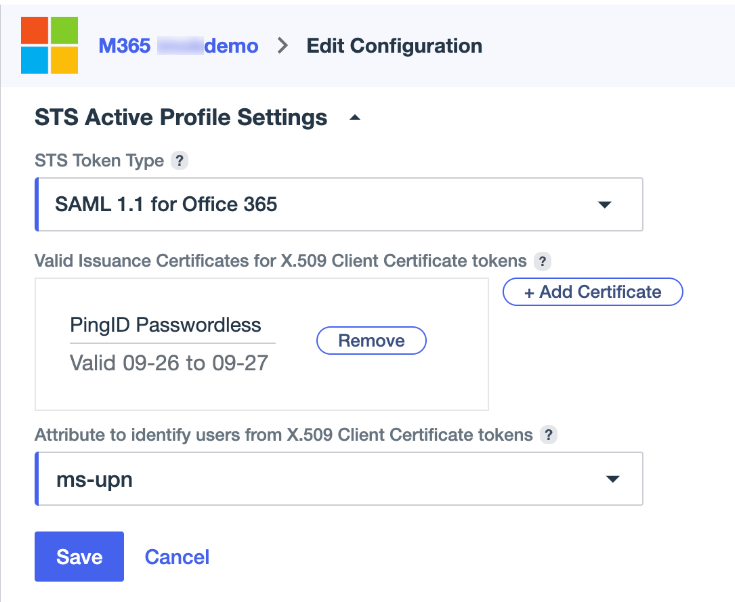
In the STS Active Profile Settings section, configure the following settings:
-
For Valid Issuance Certificates for X.509 Client Certificate tokens, select the issuance certificate from your PingID Windows login passwordless setup, such as PingID Passwordless.
-
For Attribute to identify users from X.509 Client Certificate tokens, select the custom user attribute you previously created, such as
ms-upn.
-
-
Click Save.
Validation
After completing the configuration steps, verify that users receive a PRT when they sign on to a hybrid-joined Windows device with a domain username and password and when they sign on with PingID without a password.
Domain username and password sign-on
Verify that the existing username token flow still works:
-
Restart a hybrid-joined Windows device.
-
Sign on to the device using a domain username and password.
-
Open Command Prompt and run
dsregcmd /status. -
In the
SSO Statesection, verify the output includesAzureAdPrt : YES.... +----------------------------------------------------------------------+ | SSO State | +----------------------------------------------------------------------+ AzureAdPrt : YES ...AzureAdPrt : YESmeans the device received a PRT from Entra ID for the signed-on user.
Passwordless sign-on and unlock
Verify that the new X.509 client certificate token flow with PingID Windows login passwordless works:
-
Restart the hybrid-joined Windows device.
-
Sign on to the device using PingID without a password.
-
Open Command Prompt and run
dsregcmd /status. -
In the
SSO Statesection, verify the output includesAzureAdPrt : YES, as shown in the preceding example. -
Lock the device and unlock it using PingID without a password.
-
Repeat steps 3 and 4 to verify that
AzureAdPrt : YESappears in theSSO Statesection after unlocking the device.... +----------------------------------------------------------------------+ | SSO State | +----------------------------------------------------------------------+ AzureAdPrt : YES ...AzureAdPrt : YESmeans the device received a PRT from Entra ID for the signed-on user.